Topics & editor
Creating topics, writing text, the full-page view, version history and subsets.
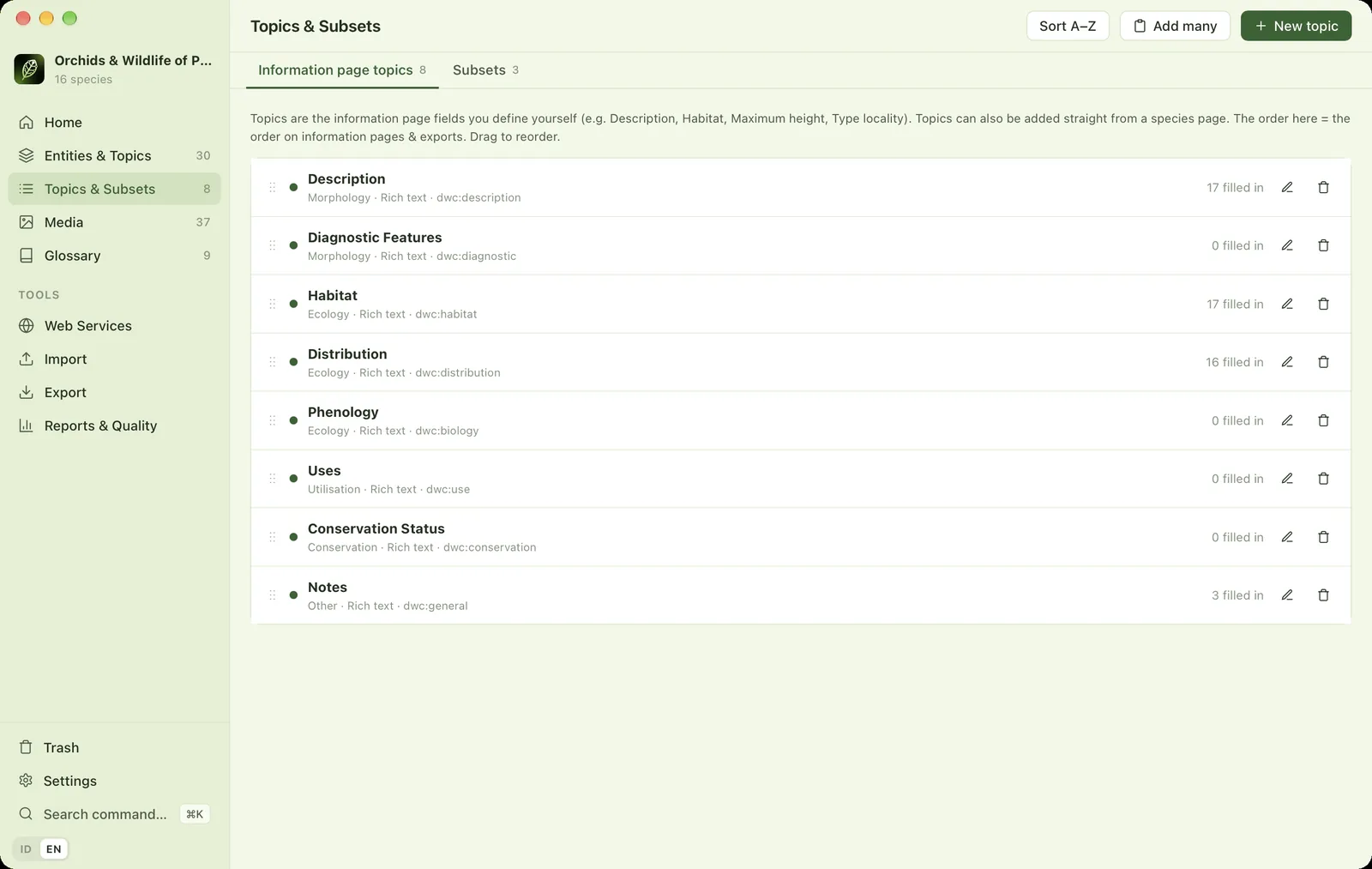
Topics are the section headings of the information page. You decide which topics the project needs, and the topic order becomes the order of sections on the information page and in exports.
Adding & renaming topics#
- Adding: type a name in the New topic… (Enter) box in the Topics panel, or open Topics & Subsets (⌘3) → New topic / Add many.
- Renaming: double-click the topic name in the Topics panel (or select it and press Enter), type the new name, then press Enter.
- Ordering: drag topics, or select one and press ⌥↑ / ⌥↓. The Topics & Subsets page has a Sort A–Z button.
Per-topic settings#
Select a topic, then open Properties → Topic:
| Field | Purpose |
|---|---|
| Topic name | The section heading on the information page. |
| Field type | Rich text (paragraphs, lists, tables), short text, number, choice or date. |
| List of choices | One choice per line, for the Choice type. |
| Group | Groups topics, e.g. Morphology or Ecology. Groups appear as subheadings in the full-page view. |
| Darwin Core description type | Maps the topic to a description type for Darwin Core Archive export. |
| Heading colour | The colour of the topic heading on the information page. |
| Hide the heading | The text is still shown, the heading is not. |
| Do not include when exporting | An internal topic that is not published. |
Writing text#
Select an entity and a topic, then write in the centre area. Text saves automatically and Saved appears in the topic header. Text pasted from Word is cleaned of unnecessary formatting automatically.
| Format | Shortcut |
|---|---|
| Bold / italic / underline | ⌘B ⌘I ⌘U |
| Strikethrough | ⇧⌘S |
| Heading level 3 / 4 | ⌥⌘3 ⌥⌘4 |
| Bulleted / numbered list | ⇧⌘8 ⇧⌘7 |
| Undo / redo | ⌘Z ⇧⌘Z |
Full-page view#
Click All topics (full page) in the Topics panel to see and edit all of an entity's topics at once. Topics are grouped, and empty topics are shown compactly as chips at the bottom. Click a chip to start filling it in.
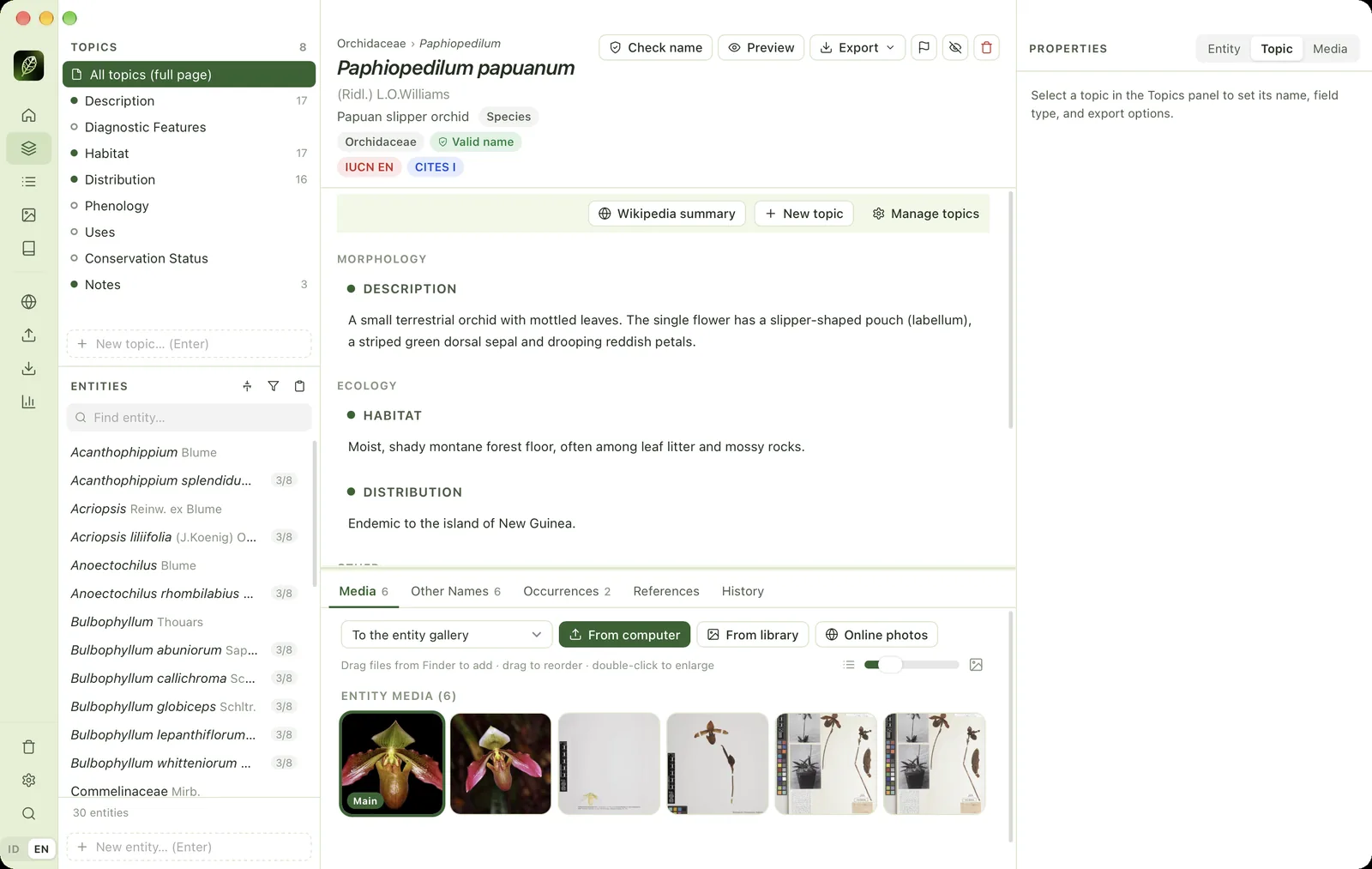
This view also offers Wikipedia summary (fetches the summary of the Indonesian article, then the English one, with CC BY-SA attribution), New topic and Manage topics.
Moving around quickly#
- ⌘↑ / ⌘↓: previous/next topic. At the end of the list it continues to another entity.
- ⌘← / ⌘→: previous/next entity, staying on the same topic.
- ⌘= / ⌘− / ⌘0: bigger, smaller or default text size.
History & restoring older text#
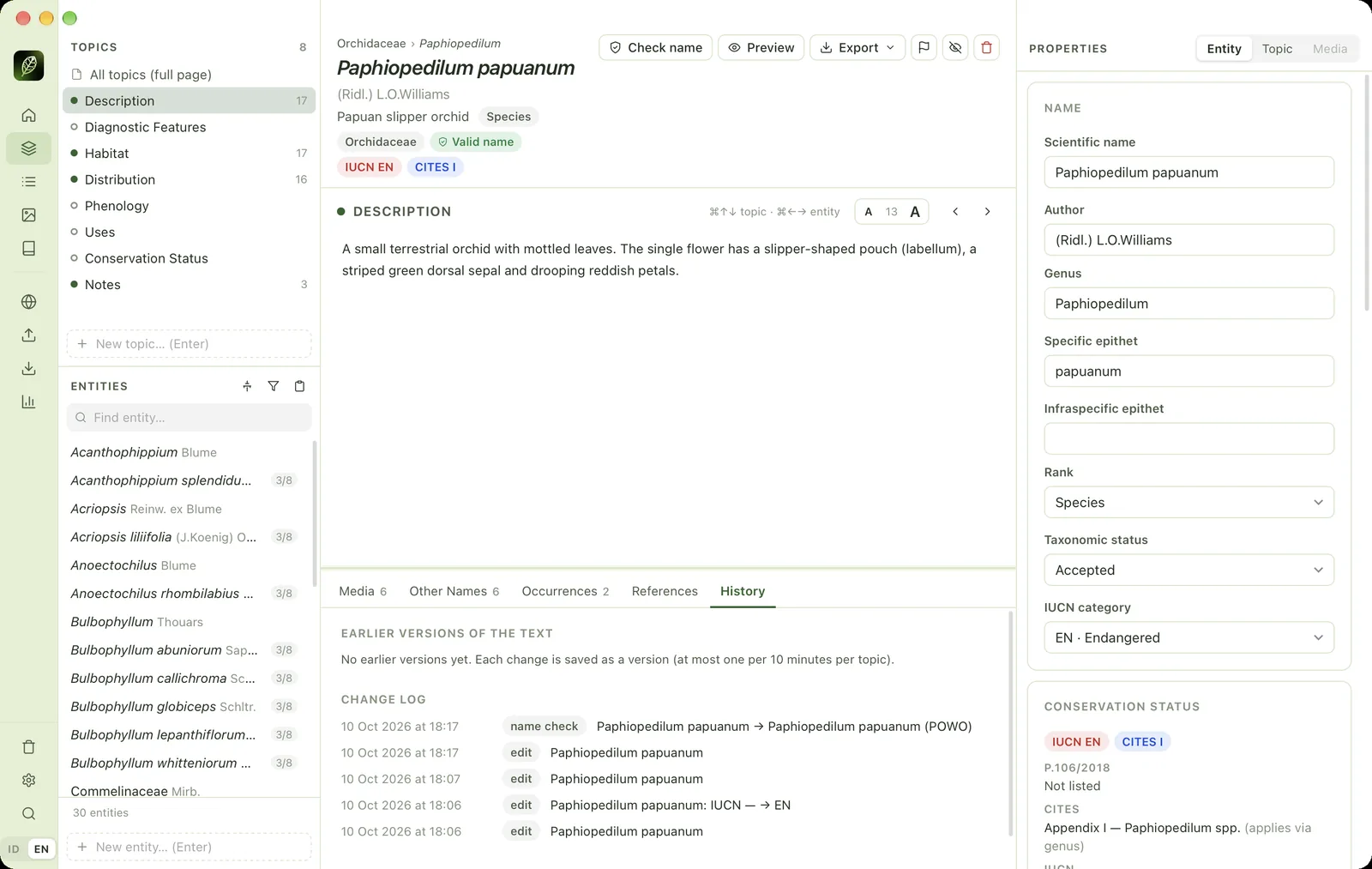
The History tab in the bottom panel holds Earlier versions of the text (at most one version per 10 minutes of editing per topic) and the Change log (who/what changed things, including changes made by the AI assistant). Click a version to view it, then Restore. The current text is kept in the history too, so a restore can always be undone.
Deleting a topic#
Select the topic → Properties → Topic → Delete topic, or click the trash icon on the Topics & Subsets page. The app tells you how many entities have text that will be deleted. A copy of the text is kept in each entity's History, marked "deleted topic", and can be restored. If you only want to hide a topic, tick Do not include when exporting.
Subsets#
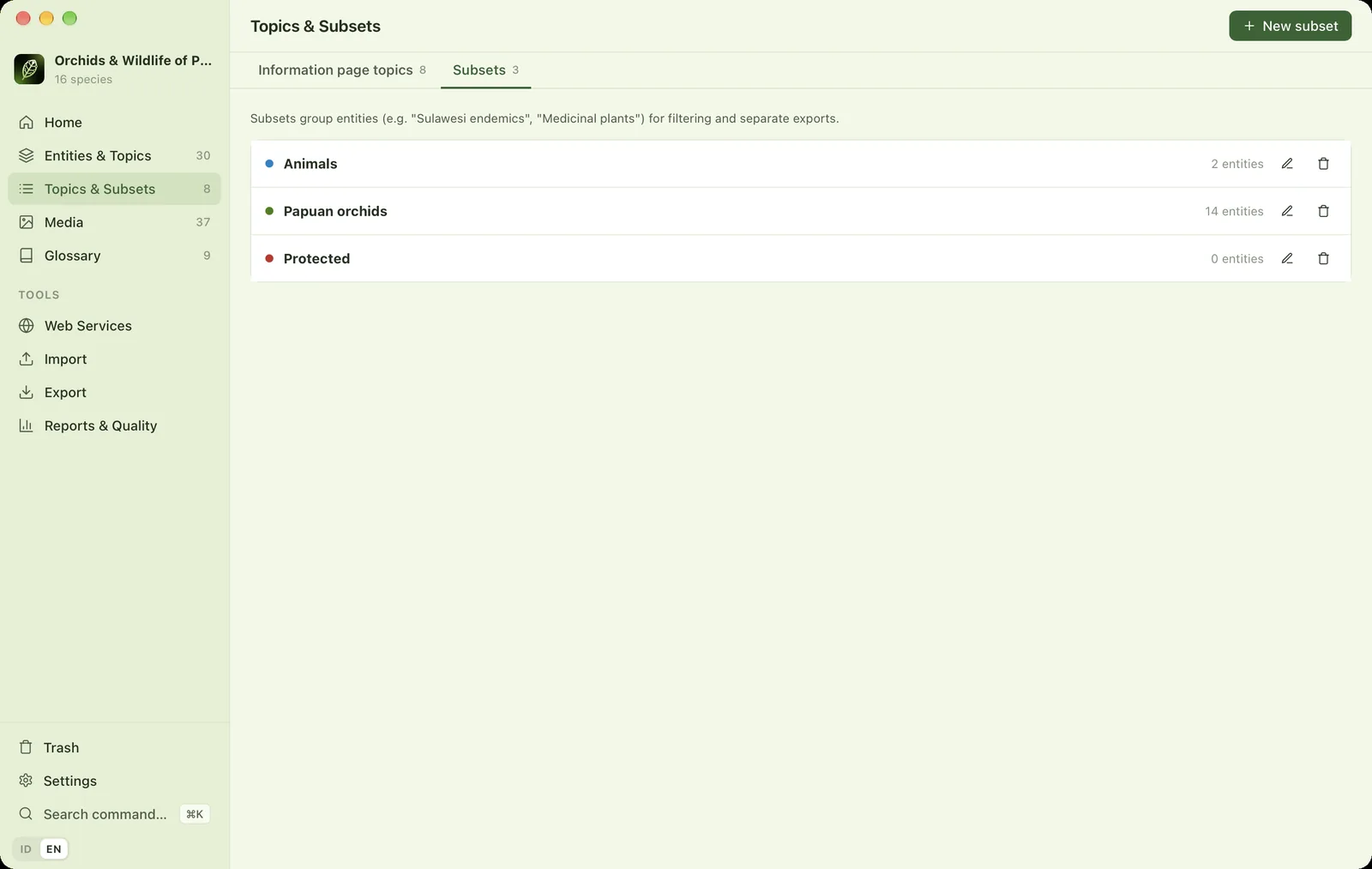
A subset is any grouping of entities you like, such as "Papuan orchids", "2026 edition" or "Protected". Manage them in Topics & Subsets → Subsets: create, rename, change colour or delete. Deleting a subset does not delete its entities. Add entities through Properties → Entity → Subsets or with bulk actions. Subsets can be used to filter the list, maps and exports.