
Reports & data quality
Data problems, media usage, occurrence quality, ad hoc reports, and find & replace.
The Reports & Quality page (⌘7) helps you find and fix problems before a project is published.
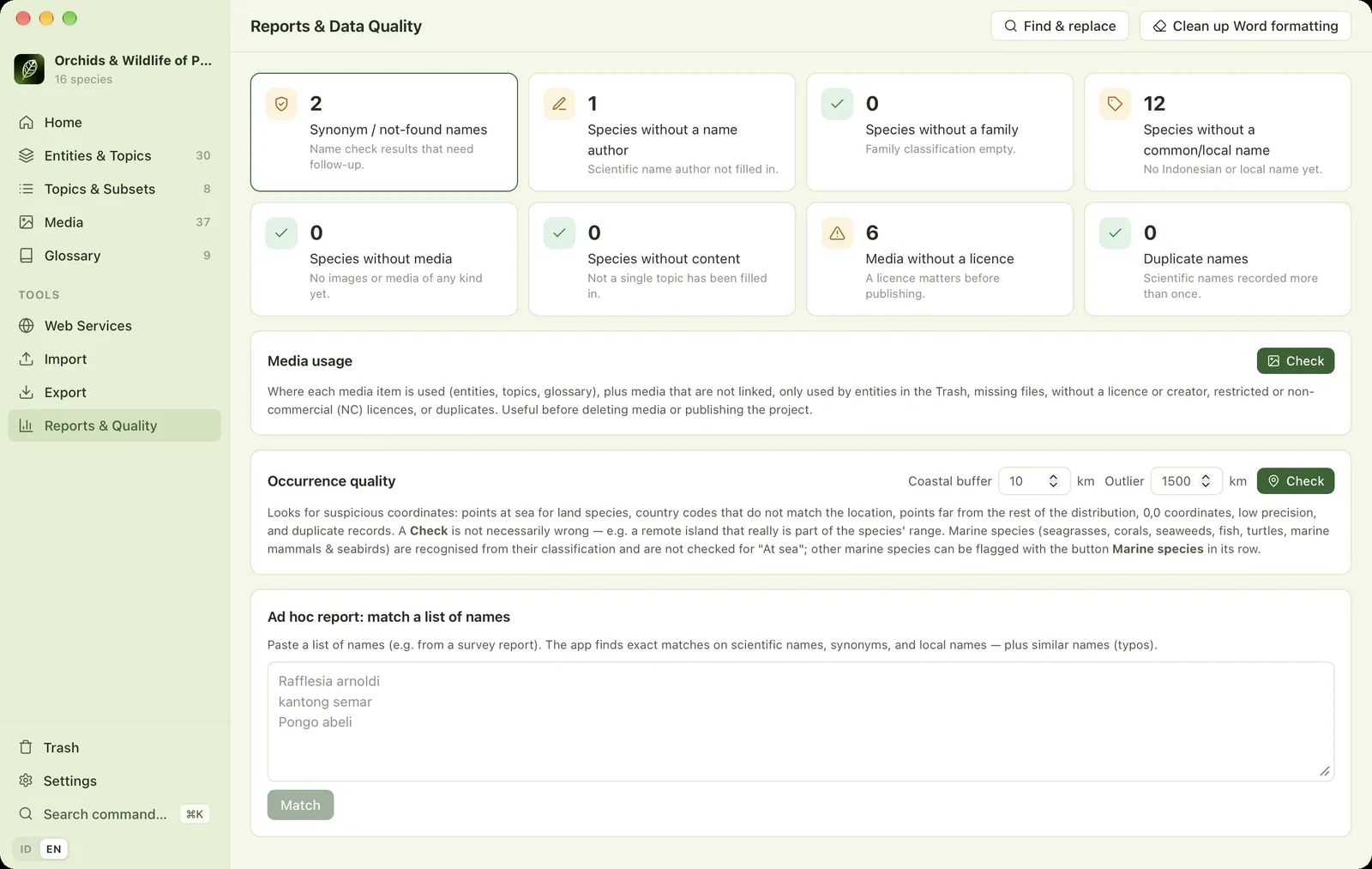
- 1Find & replaceFinds and replaces text in all topic text, with a preview (⇧⌘F).
- 2Clean up Word formattingRemoves leftover Word formatting from all text. A backup is made automatically.
- 3Data problem cardsClick a card to see the list of entities with that problem.
- 4Media without a licenceMedia that have not been given a licence.
- 5Media usageA report of where each media item is used, and its licence problems.
- 6Occurrence thresholdsCoastal buffer (km) and outlier distance (km).
- 7Check occurrencesLooks for points at sea, wrong country codes, outliers and duplicates.
- 8Ad hoc reportPaste a list of names, e.g. from a survey report.
- 9MatchShows the names that match, those that are similar (typos) and those that are missing.
Data problem cards#
Eight cards count: names that are synonyms or not found, species without an author, without a family, without common/local names, without media, without text, media without a licence, and duplicate names. Click a card to see its list. Click a name in the list to open that entity.
Media usage#
Click Check on the Media usage card. The table lists every media item, where it is used (entity · topic, glossary term, a main mark), its licence and creator, and its problems:
| Label | Meaning |
|---|---|
| Not linked | Not used by any entity, topic or term. |
| Only in Trash | Only used by entities that have been deleted. |
| Missing file | The file is no longer in the project folder. |
| No licence | No licence filled in yet. |
| Restricted licence | ND (no derivatives) or all rights reserved. |
| Non-commercial (NC) | May only be used for non-commercial purposes. |
| No creator | Photographer and rights holder are empty, so no attribution can be written. |
| Duplicate | Exactly the same file as another media item. |
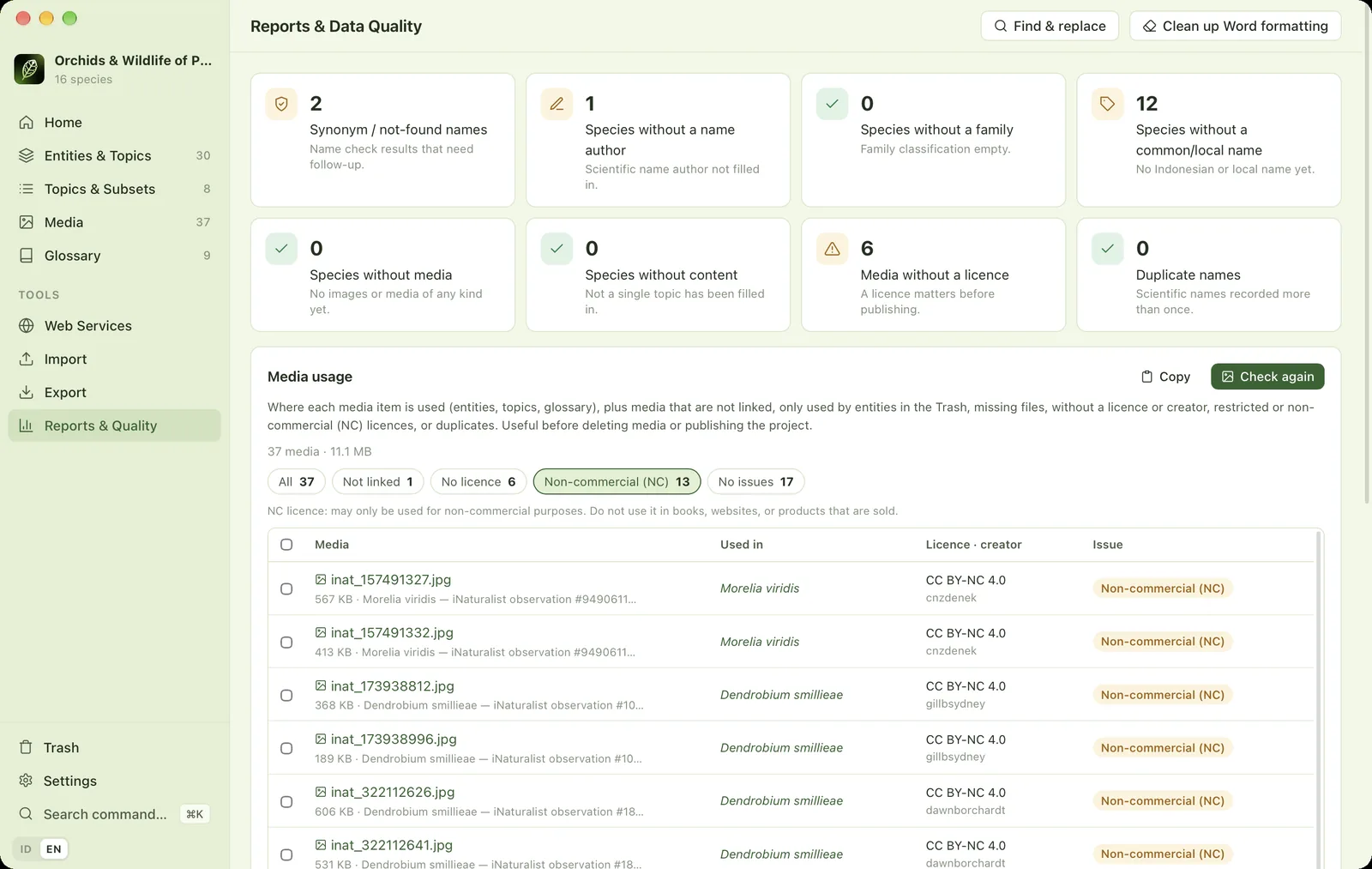
Click a problem label to filter. Tick media and then Delete N media to clean up, for example everything that is not linked. Copy copies the rows shown for pasting into Excel. This report can also be opened from the Media page for the selected media only.
Occurrence quality#
Click Check on the Occurrence quality card to check every record that has coordinates:
- At sea for land species: further than the Coastal buffer (10 km by default) from the coastline. More than 50 km is marked Wrong, otherwise Check.
- Country code mismatch: e.g. AU is given but the coordinates are in Indonesia.
- Far from other records: the distance to the nearest other point exceeds the Outlier distance (1,500 km by default), for species with at least 5 localities.
- Coordinates 0,0, out of range, low precision (whole numbers) and duplicates (same coordinates & date).
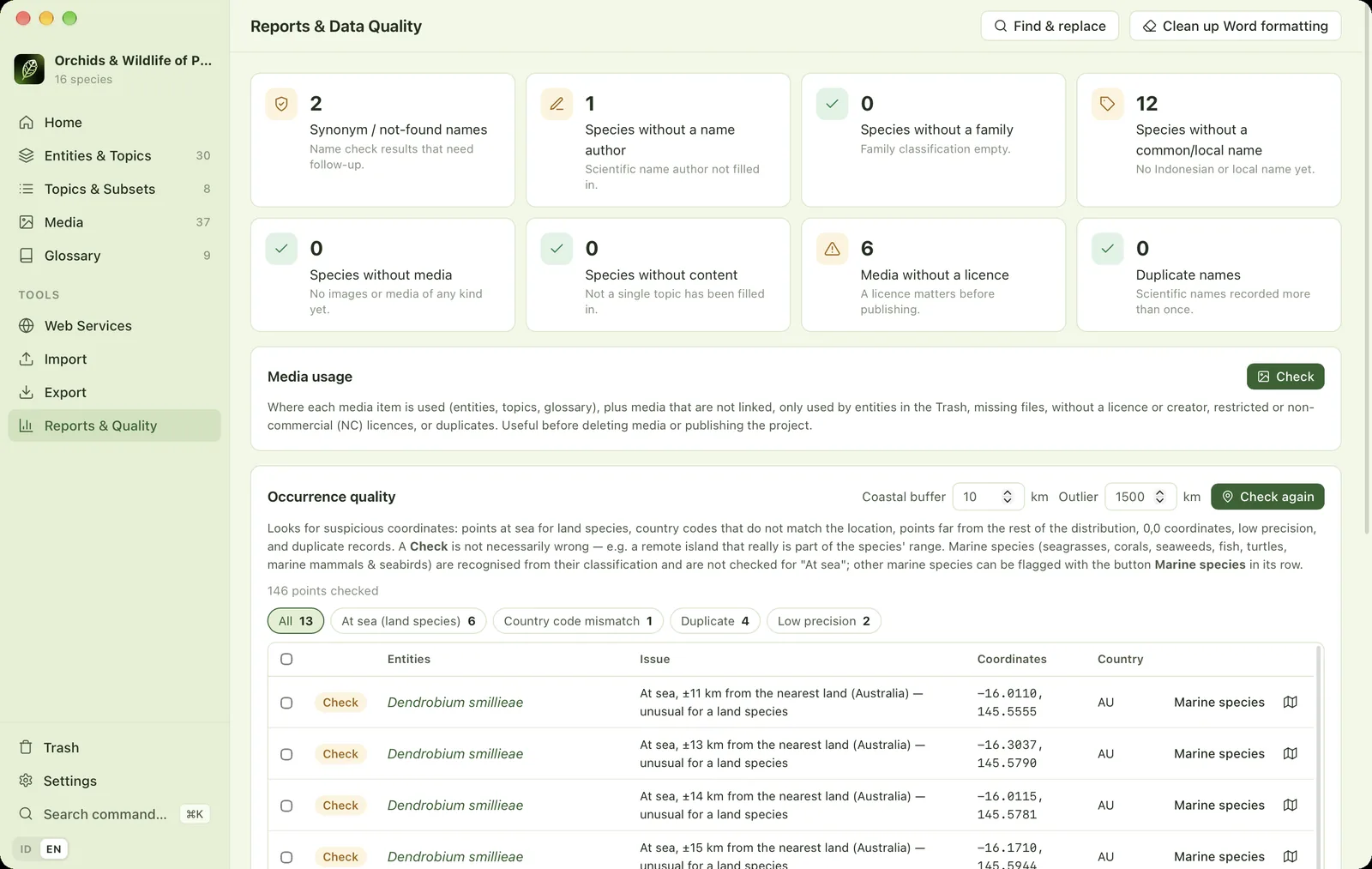
The map icon on each row opens the interactive map zoomed straight to that point, with a red ring and its record card open. Marine species (corals, fish, seagrasses, turtles, marine mammals, seabirds) are recognised automatically from their classification and are not checked for "At sea". Other marine species can be flagged with the Marine species button on their row.
Ad hoc report: match a list of names#
Paste a list of names, e.g. from a survey report, then click Match. The app shows names that match exactly (scientific name, synonym or local name), similar names (probably typos) and names that are not in the project.
Find & replace#
Find & replace (⇧⌘F) works across all topic text with options for match case, whole words and regular expressions (regex). A preview shows every change before it is applied.
Clean up Word formatting#
Removes leftover formatting from text that was once pasted from Word: unnecessary fonts, colours and styles. A backup is made automatically before the clean-up.