
Installing & getting started
Downloading, installing and opening Pustaka Biodiversitas for the first time.
Pustaka Biodiversitas is a desktop app for macOS and Windows for compiling, checking and publishing biodiversity data, from species lists to websites of information pages. The interface is available in Indonesian and English, and all data is stored on your own computer.
System requirements#
- macOS: a Mac with Apple silicon (M1 or newer), macOS 12 Monterey or newer.
- Windows: Windows 10 (version 1803 or newer) or Windows 11, 64-bit. Windows computers with an ARM processor run it through emulation.
- About 100 MB of disk space for the app, plus the size of your projects and media.
- The internet is only needed for web services (name checks, conservation status, online photos & occurrences, online base maps, the AI assistant), licence activation and update checks. Everything else works offline.
Installing on macOS#
- Download
Pustaka-Biodiversitas_0.4.1_aarch64.dmgfrom biodiversitas.id/pustakabiodiv. - Double-click the
.dmgfile. A window with the app icon and the Applications folder opens. - Drag the Pustaka Biodiversitas icon onto the Applications folder.
- Open the app from Launchpad or the Applications folder.
Installing on Windows#
- Download
Pustaka-Biodiversitas_0.4.1_x64-setup.exefrom biodiversitas.id/pustakabiodiv. - Double-click the file. The installer does not ask for administrator rights: the app is installed for your Windows account only.
- If Windows shows "Windows protected your PC" (SmartScreen), click More info and then Run anyway.
- Open the app from the Start menu. If the Microsoft Edge WebView2 component is missing, the installer downloads it automatically.
Every feature is the same on both systems. Keyboard shortcuts follow each system's conventions: ⌘ on macOS becomes Ctrl on Windows. The macOS | Windows switch at the top of this guide changes how shortcuts are shown. See Keyboard shortcuts.
Indonesian or English#
Click ID | EN on the start screen, at the bottom of the sidebar, or in Settings → Appearance. The language changes instantly without restarting the app, menus included. The first time it opens, the app follows the system language. The export language is set separately on the Export page.
Start screen#
When no project is open, the app shows the start screen. From here you can create a new project, open an existing one, or try the sample project.
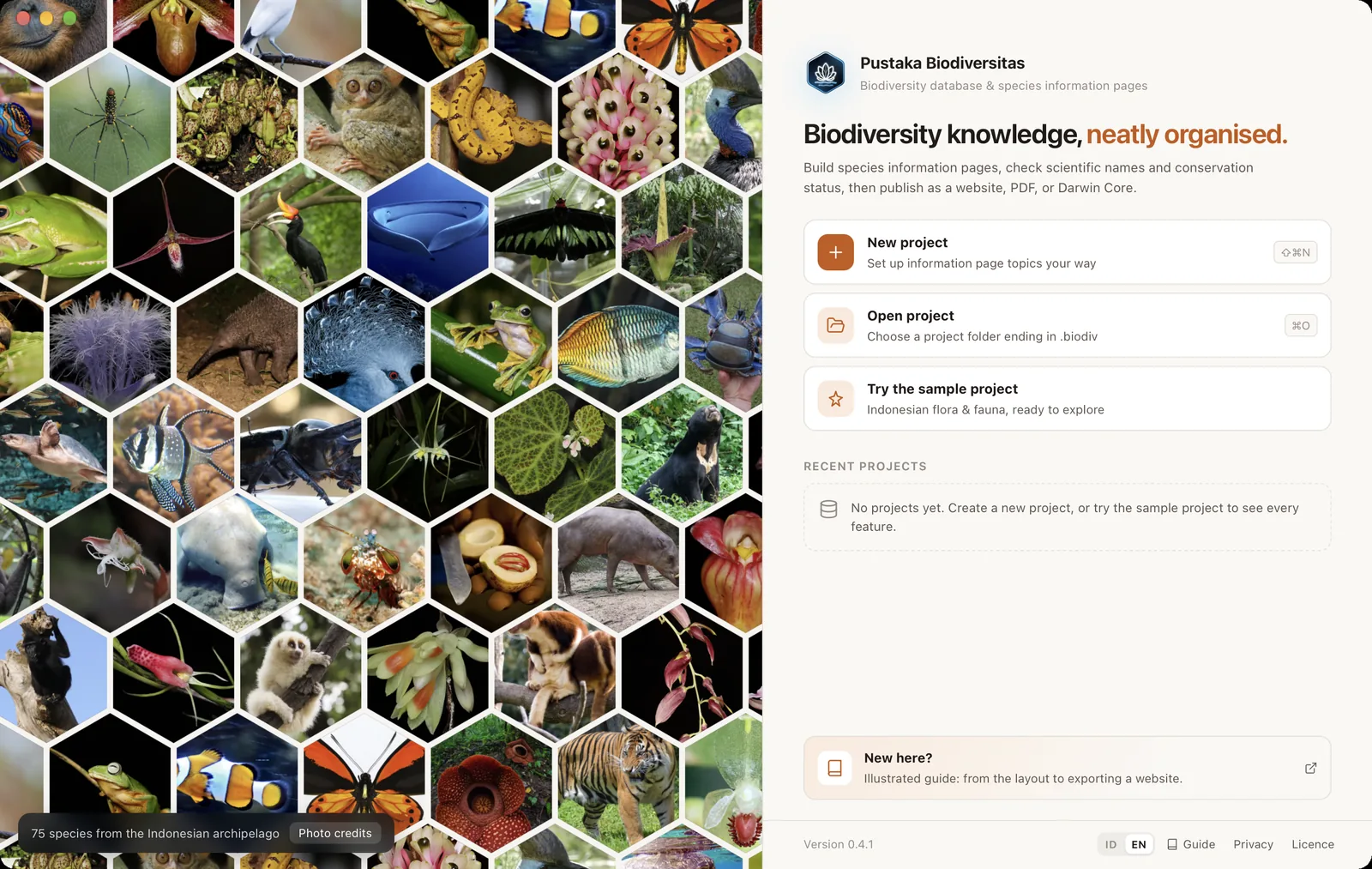
- 1Biodiversity collage19 Papuan plant and animal species. Hover over a photo to see the species name, location and photographer.
- 2Photo attributionThird-party photos show their creator and licence. Click to open the source on Wikimedia Commons.
- 3App logo and nameDrag the top of the window to move it.
- 4SummaryWhat you can do with this app.
- 5New projectCreate an empty project or one with standard topics (⇧⌘N).
- 6Open projectChoose a project folder ending in .biodiv (⌘O).
- 7Try the sample projectCreate a project with sample Indonesian flora & fauna to explore.
- 8Recent projectsClick to open. The × button or Delete only removes it from the list; the project itself is not deleted.
- 9New here?Opens this guide in your browser.
- 10App versionThe installed version number.
- 11Guide, Privacy, LicencesLinks to the guide, privacy policy and licence information.
Trying the sample project#
The quickest way to get to know the app is Try the sample project. The app creates a project with some Indonesian plants and animals, complete with topics, other names and a glossary. You are free to change or delete anything in it.
Creating a new project#
- Click New project on the start screen, or press ⇧⌘N at any time.
- Choose how to set up topics: Start empty (create your own topics, or let them be created automatically from an imported Excel/CSV file) or Standard flora & fauna topics (Description, Diagnostic Features, Habitat, Distribution, Phenology, Uses, Conservation Status, Notes).
- Click Choose location & create, then give it a name and choose a folder. The app creates a
ProjectName.biodivfolder, and that name becomes the project title (you can change it in Settings).
Once the project is open you are on Home. Continue with The app layout to learn every part of the screen.
What is in a project folder#
One project = one .biodiv folder. To move or back up a project, simply copy the whole folder.
| Content | Purpose |
|---|---|
data.sqlite | All the data: taxa, topics, text, other names, occurrences, glossary and project settings. |
media/ | Copies of every media file (photos, video, sound, documents). |
thumbs/ | Automatically generated thumbnails. Safe to delete; they are recreated. |
backup/ | Automatic database backups. |
templates/web/ | (optional) A custom website template for this project. |
data.sqlite while the project is open in the app. Close the project first (⇧⌘W).