Home
The project overview: statistics, highlights, completeness and things that need attention.
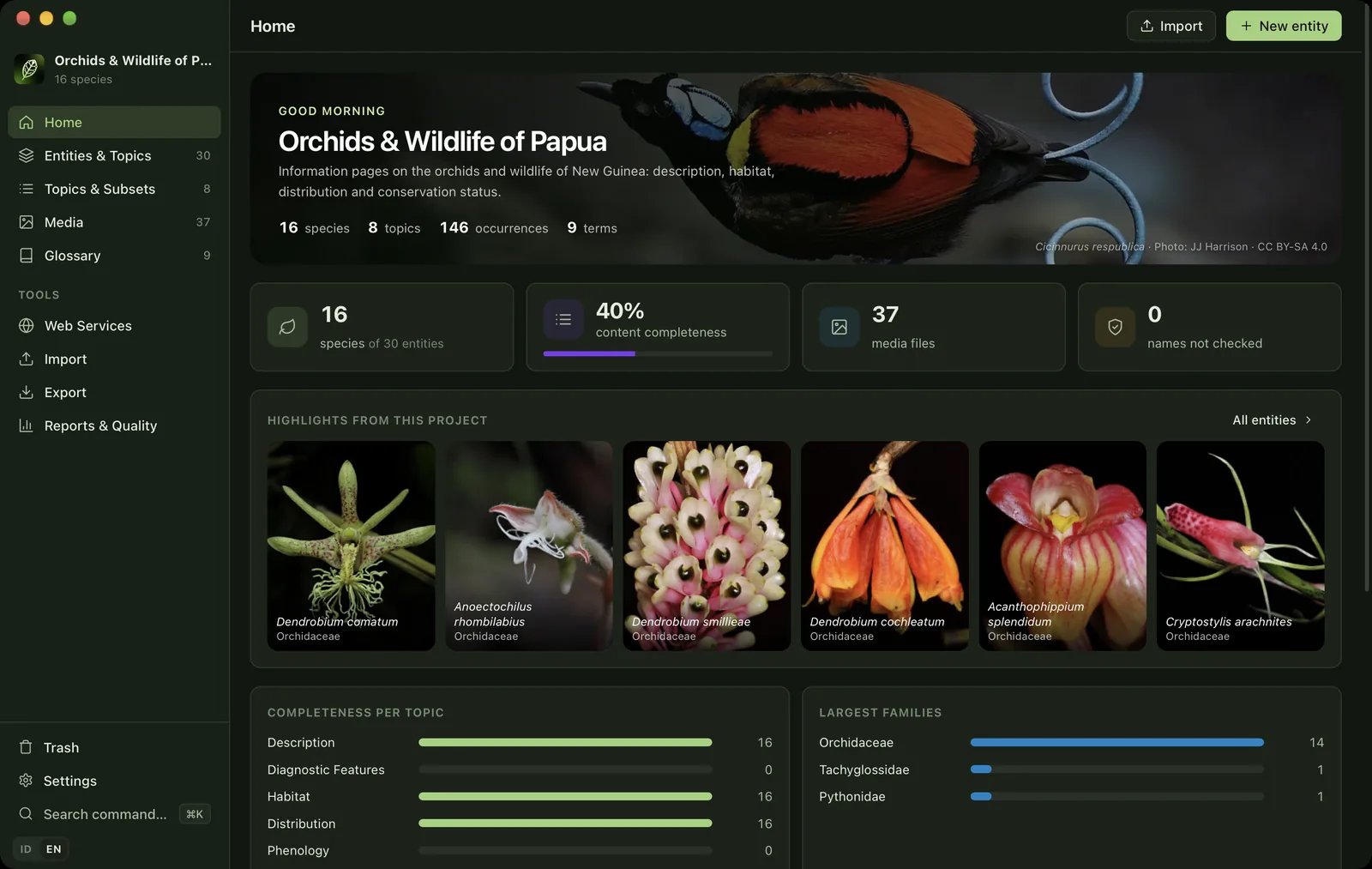
Home (⌘1) is the first page after a project opens. It shows the state of the project and shortcuts to the most common tasks.
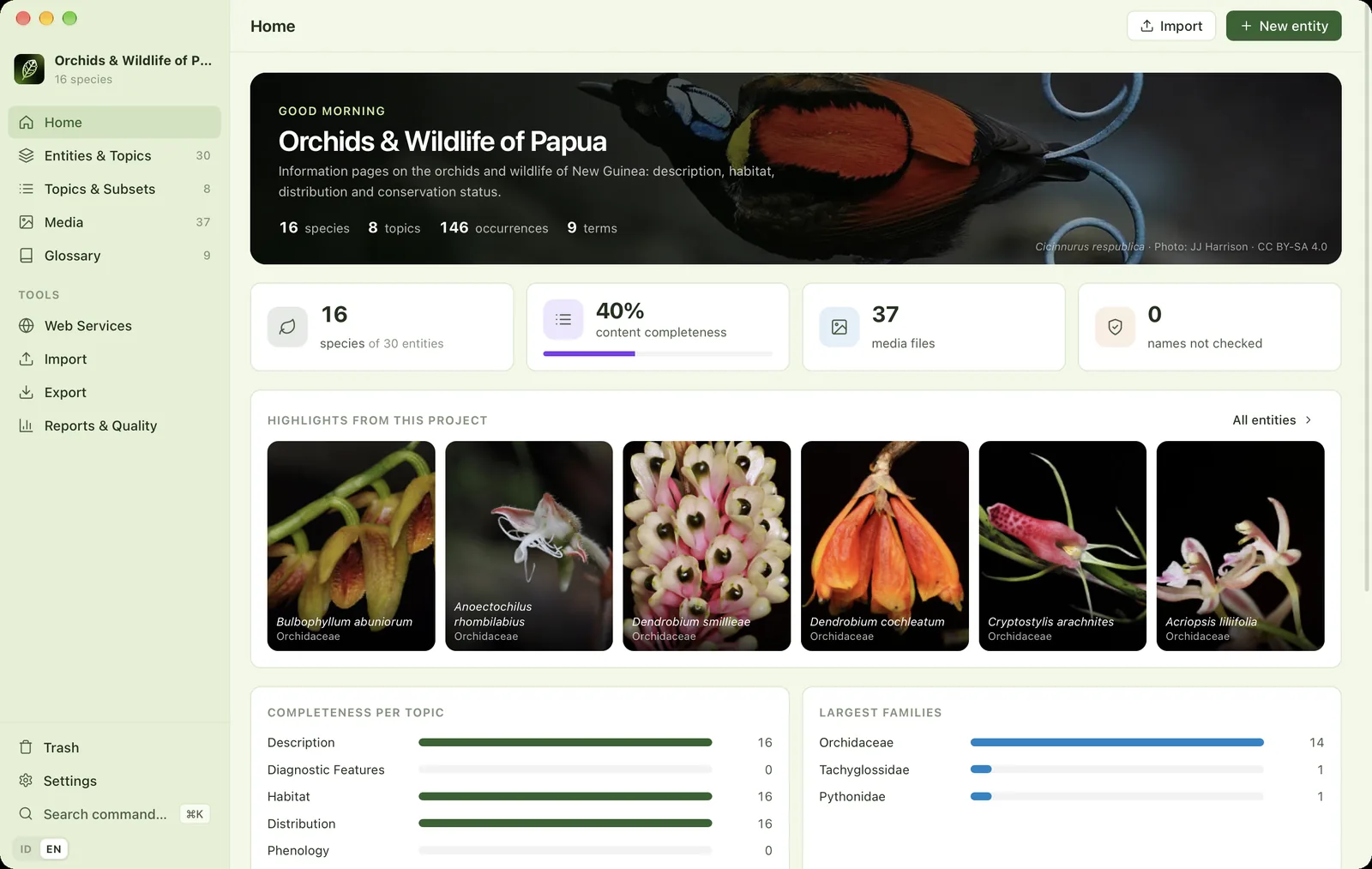
- 1Project identityProject title and number of species.
- 2Main pagesHome (⌘1), Entities & Topics (⌘2), Topics & Subsets (⌘3), Media (⌘4), Glossary (⌘5).
- 3ToolsWeb Services (⌘6), Import (⌘I), Export (⌘E), Reports & Quality (⌘7). The orange number = names not yet checked.
- 4Trash, Settings, Search commandsDeleted entities, settings (⌘,) and global search (⌘K).
- 5Import & New entityShortcuts for starting to add data.
- 6Project bannerGreeting, project title and description (edit them in Settings → This project).
- 7Key figuresNumber of species, topics, occurrences and glossary terms.
- 8Photo captionThe banner photo changes every day.
- 9Statistic cardsClick a card to open the related page, e.g. the entity list or Web Services.
- 10Highlights from this projectSix random species from your project that have pictures. Click to open one.
- 11All entitiesOpens the Entities & Topics workspace.
- 12Completeness per topicHow many species have filled in each topic.
- 13Largest familiesThe ten families with the most species.
Statistic cards#
Four cards show the number of species, the percentage of text completed, the number of media files and the number of names not yet checked. Completeness is the number of filled-in topics divided by (number of species × number of topics not excluded from export). Click a card to open the related page.
Highlights from this project#
Six random species that have pictures are shown each time Home opens. Click one to open that entity in the workspace. This section only appears once the project has pictures.
Needs attention#
Below the completeness chart, the Needs attention card lists problems that should be fixed before publishing:
- Names that are synonyms or were not found.
- Entities marked as needing review.
- Species without pictures.
- Media without a licence.
- Media with a non-commercial (NC) licence. See Photo & data licences.
The Recent activity card next to it shows the eight latest entries from the change log.
Theme#
By default the app follows the system's light/dark mode. You can force light or dark and choose the Sunset Orange or Forest Green palette in Settings → Appearance.