
Guide › Quality & tools
Keyboard shortcuts
Every keyboard shortcut on one page.
Pustaka Biodiversitas can be used entirely from the keyboard. Press ⌘/ in the app to see this list, with a search box.
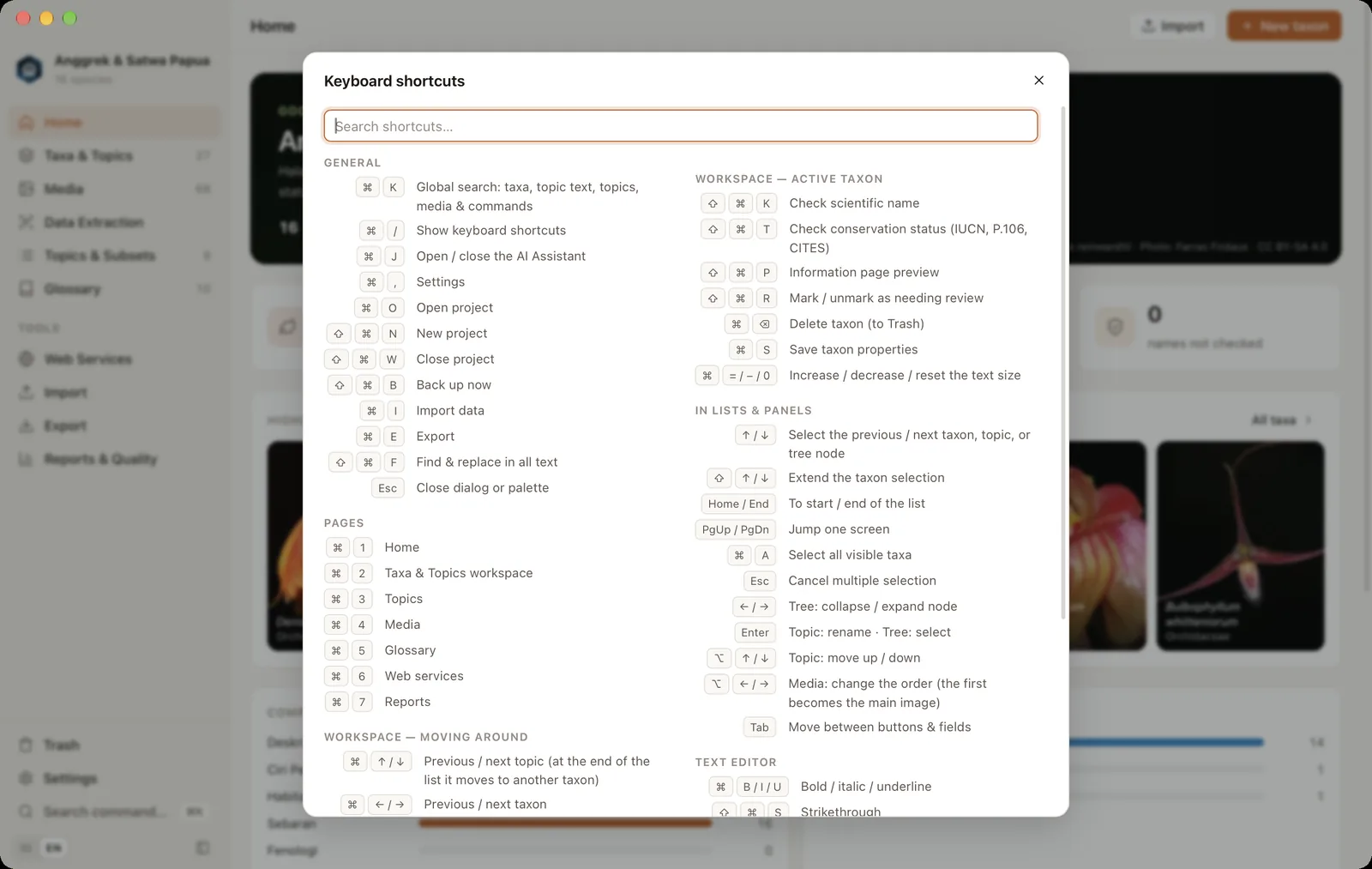
⌘ = Command · ⌥ = Option · ⇧ = Shift · ⌃ = Control. Use the macOS | Windows switch at the top to see the Windows shortcuts.
On Windows, some shortcuts differ from macOS so they do not clash with Windows conventions: delete a taxon with Delete, change topic with Ctrl+PgUp/Ctrl+PgDn, change taxon with Alt+←/Alt+→, and redo with Ctrl+Y.
General#
| ⌘K | Global search: taxa, topic text, media and commands |
| ⌘/ | Show keyboard shortcuts |
| ⌘J | Open/close the AI Assistant |
| ⌘, | Settings |
| ⌘O · ⇧⌘N · ⇧⌘W | Open project · new project · close project |
| ⇧⌘B | Back up now |
| ⌘I · ⌘E | Import · export |
| ⇧⌘F | Find & replace in all text |
| Esc | Close a dialog or the palette |
Pages#
| ⌘1 – ⌘7 | Home, Taxa & Topics, Topics & Subsets, Media, Glossary, Web Services, Reports |
Workspace#
| ⌘↑ / ⌘↓ | Previous/next topic (at the end of the list it continues to another taxon) |
| ⌘← / ⌘→ | Previous/next taxon |
| ⌘N | New taxon |
| ⌘F | Find taxon |
| ⇧⌘K | Check scientific name |
| ⇧⌘T | Check conservation status |
| ⇧⌘P | Preview the information page |
| ⇧⌘R | Mark/unmark as needing review |
| ⌘⌫ | Delete taxon (to the Trash) |
| ⌘S | Save taxon properties |
| ⌘= / ⌘− / ⌘0 | Bigger/smaller/default text size |
| ⌃⌘1 – ⌃⌘5 · F6 | Focus a specific panel · next panel |
| ⇧⌘[ / ⇧⌘] | Previous/next bottom panel tab |
In lists & panels#
| ↑ / ↓ | Select the previous/next taxon, topic or tree node |
| ⇧↑ / ⇧↓ | Extend the taxon selection |
| Home / End · PgUp / PgDn | Start/end of the list · jump one screen |
| ⌘A · Esc | Select everything shown · cancel a multiple selection |
| ← / → | Tree: collapse/expand a node |
| Enter | Topic: rename |
| ⌥↑ / ⌥↓ | Topic: move up/down |
| ⌥← / ⌥→ | Media: change order (the first becomes the main image) |
| ← → ↑ ↓ | Media (bottom panel & Media page): move to another item, its properties show on the right |
| ⇧+arrow · ⌘-click · ⇧-click | Media: select several to edit at once |
| Enter / Space | Media page: enlarge the item at the cursor |
Text editor#
| ⌘B / ⌘I / ⌘U | Bold / italic / underline |
| ⇧⌘S | Strikethrough |
| ⌥⌘3 / ⌥⌘4 | Heading level 3 / 4 |
| ⇧⌘8 / ⇧⌘7 | Bulleted / numbered list |
| ⌘Z / ⇧⌘Z | Undo / redo |
Window#
The Window menu uses native macOS behaviour: fn⌃F full screen, fn⌃← / fn⌃→ tile left/right, and the Move & Resize menu.
On Windows: F11 full screen, F1 shortcut list, Alt+F4 exit, and Win+← / Win+→ snap the window to the left/right of the screen.