
Settings, backups & updates
Project info, appearance, web services, templates, conservation status, licence, automatic backups and app updates.
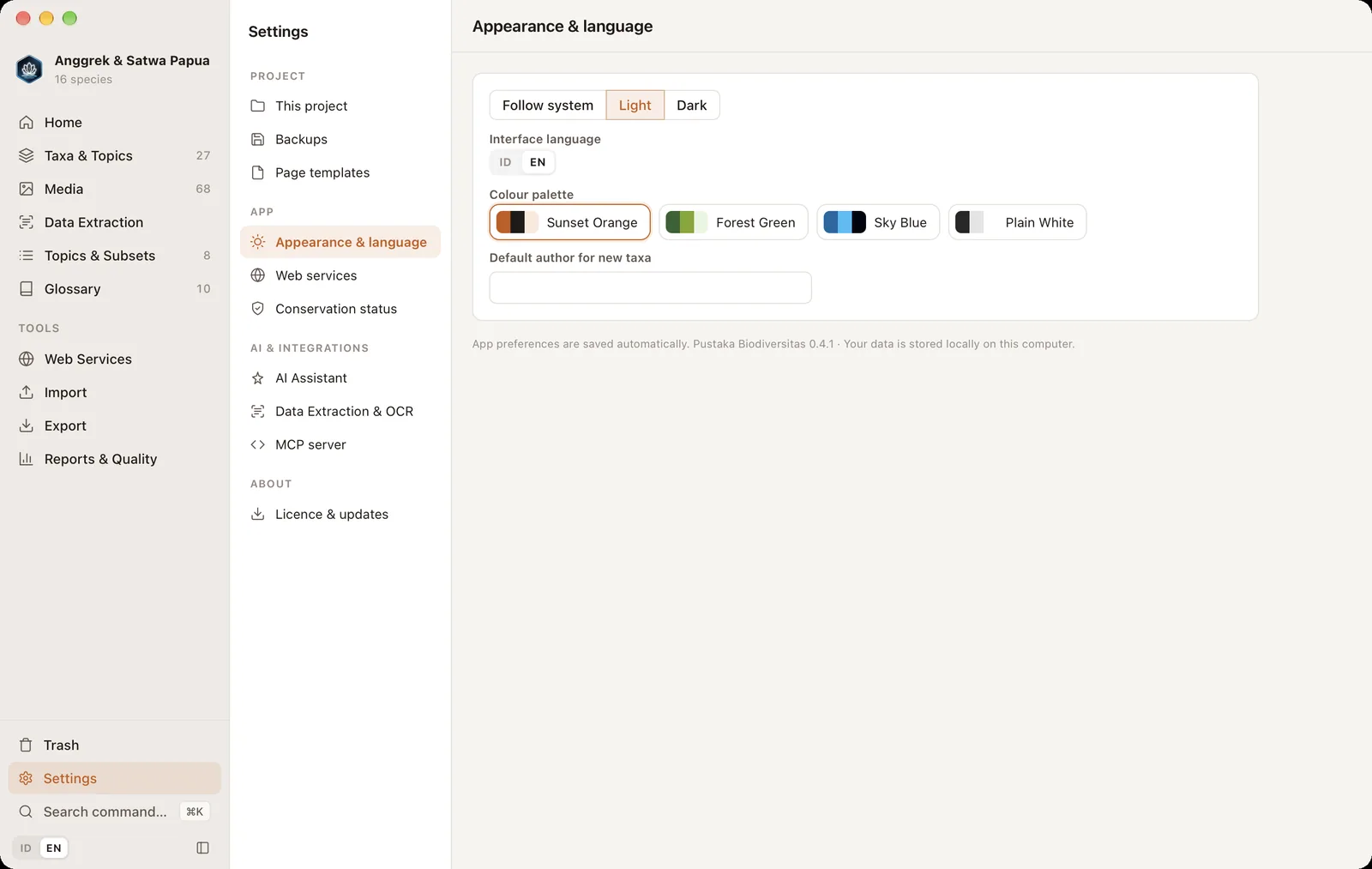
Settings (⌘,) are divided into sections in the left column: Project (This project, Backups, Page templates), App (Appearance & language, Web services, Conservation status), AI & integrations (AI Assistant, Data Extraction & OCR, MCP server) and About (Licence & updates). The last section you opened is remembered.
App preferences save automatically a moment after you change them, shown by "Saved automatically" at the top right, so there is no longer a Save preferences button. The exception is project info, which is saved with Save project info. Project settings are stored inside the project; app settings apply to every project on this computer.
This project#
Project title, compiler/author, institution, data licence (e.g. CC BY 4.0) and description. These values are used on Home and as the default details for exports. Click Save project info after changing them. Show in FinderFile Explorer opens the project folder.
Appearance#
In Appearance & language, choose Follow system, Light or Dark, the Sunset Orange, Forest Green, Sky Blue or Plain White palette, and the interface language ID | EN. The Default author is filled in automatically for new taxa.
Web services#
The automatic name-check source for plants and animals, the connection timeout (increase it on slow connections), and the default region for distribution maps. Clear web service cache forces the app to fetch data from the sources again.
Information page templates#
Export, copy, import and delete website templates. See Templates.
Conservation status#
The address of the P.106/2018 and CITES data, and the Check for data updates button. The app keeps working offline with its built-in copy of the data.
Licence#
The trial status (how many taxa and terms have been used) or the name of the licence holder. The Enter licence code / Manage licence button opens the Licence dialog. See Trial version & licence.
Automatic backups#
A database backup is made when a project opens and periodically. Set the interval (minutes) and how many backups to keep. Make a manual backup at any time with ⇧⌘B. All backups are stored in the backup/ folder inside the project folder.
.biodiv folder regularly to another disk or cloud storage.App updates#
The app checks for a new version when it opens, at most once a day. When there is one, the Update available dialog shows the release notes with these choices:
- Install & restart: text being typed is saved, the package is downloaded and its signature verified, then the app restarts with the same project open again.
- Later, or Skip this version.
Manual check: the Pustaka Biodiversitas → Check for Updates… menu (macOS) or Help → Check for Updates… (Windows), or ⌘K → "Check for app updates". The automatic check can be turned off in Settings → App updates.
AI Assistant & MCP server#
See AI Assistant & MCP server. API keys are only read from the Keychain when you open the AI Assistant section, so opening Settings does not trigger Keychain permission prompts.
Data Extraction & OCR#
A summary of the OCR engine, table builder and PDF text-layer option, with an Set up OCR engine & builder button. See Setting up the OCR engine & builder.