
The app layout
Getting to know every part of the Entities & Topics workspace.
Almost all work happens in the Entities & Topics workspace (⌘2). The picture below marks every part of the screen. Hover over a number or its explanation to highlight the other.
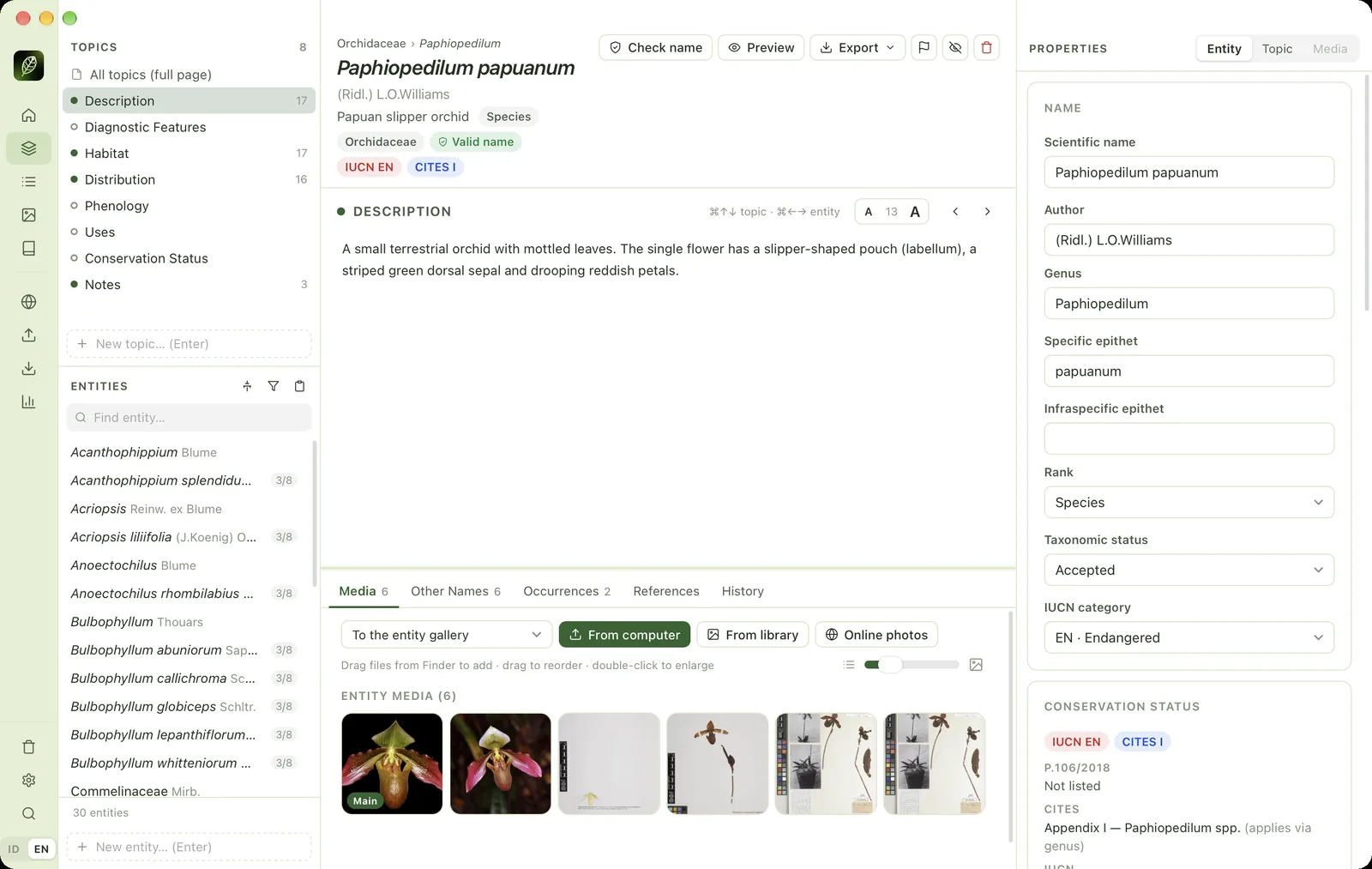
- 1Compact sidebarIn the workspace the sidebar shrinks to icons to give you more writing space. Hover to see page names.
- 2Topics panelThe topics of the information page. The number on the right = number of topics.
- 3All topics (full page)Shows all of the entity's topics at once, like the information page.
- 4Selected topicGreen dot = this topic is filled in for the selected entity. Number = how many entities have filled it in.
- 5New topicType a topic name and press Enter.
- 6Entities panelAll entities in the project: species, genera, families, or anything you create.
- 7Tree, filter, add manyHierarchy view, filters & sorting, and adding many entities at once.
- 8Find entityFilters the list by scientific name, synonym or common name (⌘F).
- 9Completeness indicator3/8 = three of eight topics filled in. A tick = all topics filled in.
- 10New entityType a name and press Enter (⌘N). Scientific names are parsed automatically.
- 11Classification pathFamily › genus. Click to open the parent entity.
- 12Entity nameScientific name, common name and rank.
- 13Status badgesFamily, IUCN category, CITES and P.106/2018 where applicable.
- 14Check name, Preview, ExportCheck the scientific name (⇧⌘K), preview the information page (⇧⌘P) and export one species.
- 15Review, exclude, deleteMark as needing review (⇧⌘R), exclude from export, or move to the Trash (⌘⌫).
- 16Active topicThe title of the topic being edited.
- 17Navigation hint⌘↑/⌘↓ change topic, ⌘←/⌘→ change entity.
- 18Text sizeMake the editor text bigger or smaller (⌘= / ⌘− / ⌘0).
- 19EditorWrite the topic text. It saves automatically.
- 20Bottom panelMedia, Other Names, Occurrences, References and History tabs for the selected entity.
- 21Media destinationThe entity gallery, or a specific topic.
- 22Adding mediaFrom your computer, from the project's media library, or openly licensed online photos.
- 23View sizeSlide from a list of names to large thumbnails.
- 24Main imageThe first picture automatically becomes the main image. Drag to change the order.
- 25Properties tabsProperties of the entity, the selected topic or the selected media.
- 26Entity propertiesName, author, rank, taxonomic status, IUCN, classification and more. Save with ⌘S.
- 27Conservation statusResults of the IUCN, P.106/2018 and CITES check.
- 28Panel dividerDrag to change the width. Double-click to restore the default size.
Entities, topics and information pages#
The app is built on three simple ideas:
- Entity
- The thing you are documenting. Usually a taxon (family, genus, species, subspecies), but it can be anything: an area, a functional group or something else. Entity names are free text. If a name looks like a scientific name, the app parses it into genus, epithet and author.
- Topic
- A section heading of the information page, such as Description, Habitat, Distribution or Uses. You decide which topics you need, and each topic can be rich text, short text, a number, a choice or a date.
- Information page
- All of an entity's topics together with its media, other names, conservation status and occurrences. This is what is published as a website, PDF or Word document.
So the workflow is: choose an entity at the bottom left, choose a topic at the top left, then write its text in the centre.
Sidebar#
The left sidebar holds the app's pages. In the workspace the sidebar shrinks to icons. On other pages the page names are shown as well, as on Home.
| Page | Shortcut | Contents |
|---|---|---|
| Home | ⌘1 | Project overview and things that need attention. |
| Entities & Topics | ⌘2 | The main workspace. |
| Topics & Subsets | ⌘3 | Managing topics and subsets. |
| Media | ⌘4 | The library of all media files. |
| Glossary | ⌘5 | Terms and their definitions. |
| Web Services | ⌘6 | Bulk scientific name checks and the occurrence map. |
| Import | ⌘I | Bringing in data from Excel, CSV, Darwin Core Archive or XML. |
| Export | ⌘E | Publishing websites, PDF, Word and data formats. |
| Reports & Quality | ⌘7 | Data quality checks. |
| Trash | Deleted entities, which can be restored. | |
| Settings | ⌘, | Project and app settings. |
| Search commands | ⌘K | Global search. |
Resizing panels#
Every divider between panels can be dragged. Double-click a divider to restore its default size. When the window is narrow the layout adapts: the Properties panel can be collapsed and the sidebar becomes icons.
Global search (⌘K)#
Press ⌘K anywhere. One box searches entities (scientific names, synonyms, common names, local names), topic text, topic titles, media (captions, file names, photographers) and every app command. Use ↑ ↓ to choose, Enter to open, Tab to jump to the next group and Esc to close.
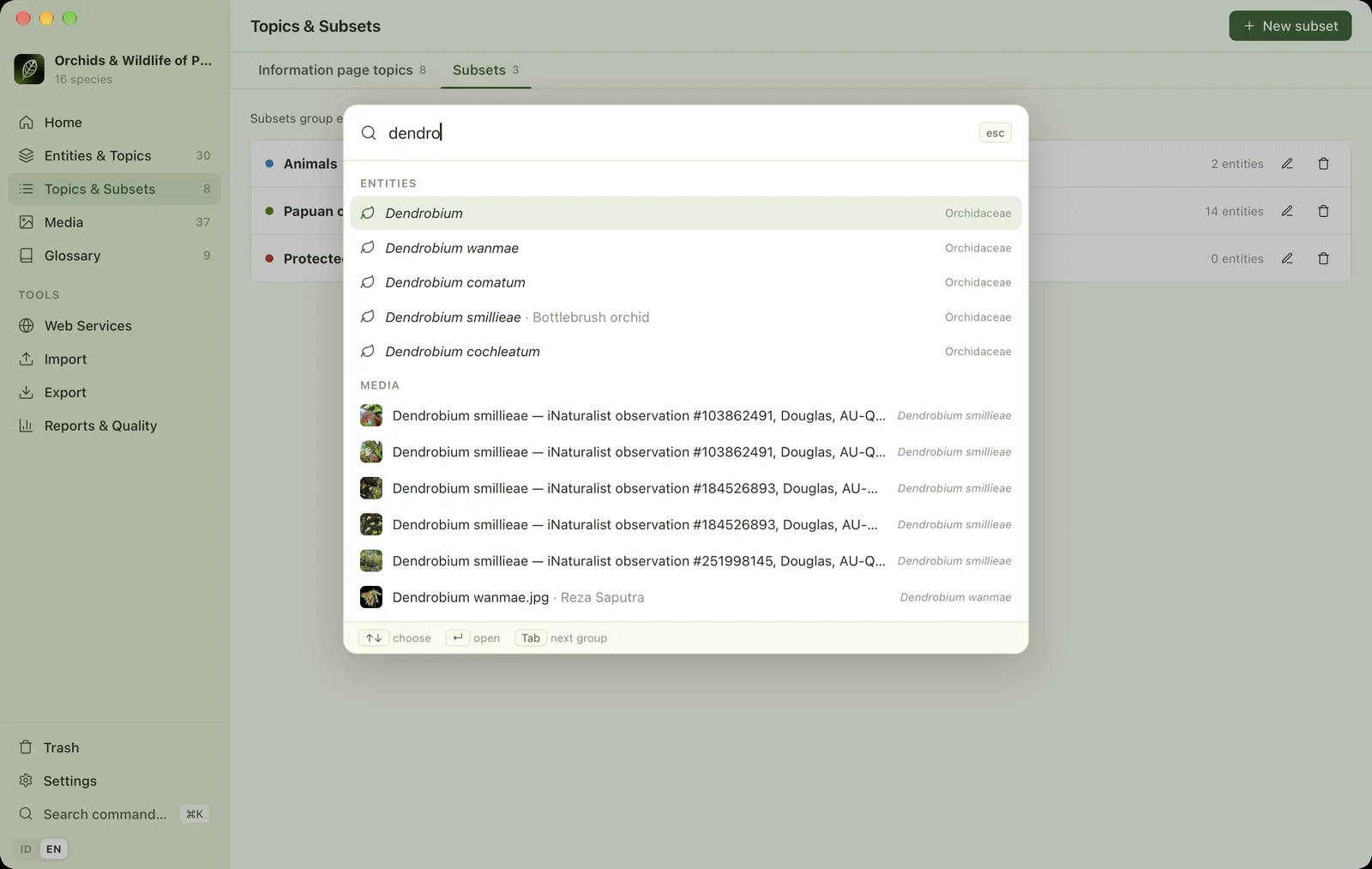
Topic-text results open the entity straight at the matching topic. Search stays under 10 milliseconds even with 100,000 taxa in a project.
Saving#
Topic text, media, other names and occurrences are saved automatically. The only exception is the fields in Properties → Entity, which must be saved with the Save button or ⌘S so that names are never changed by accident.