
Media
Adding images, video, sound and documents; setting the main image, properties and licences.
Media are not limited to photos. Video, sound recordings and documents can also be linked to entities, topics or glossary terms. Every file is copied into the project folder, so the project stays complete even if the original files are moved.
Adding media to an entity#
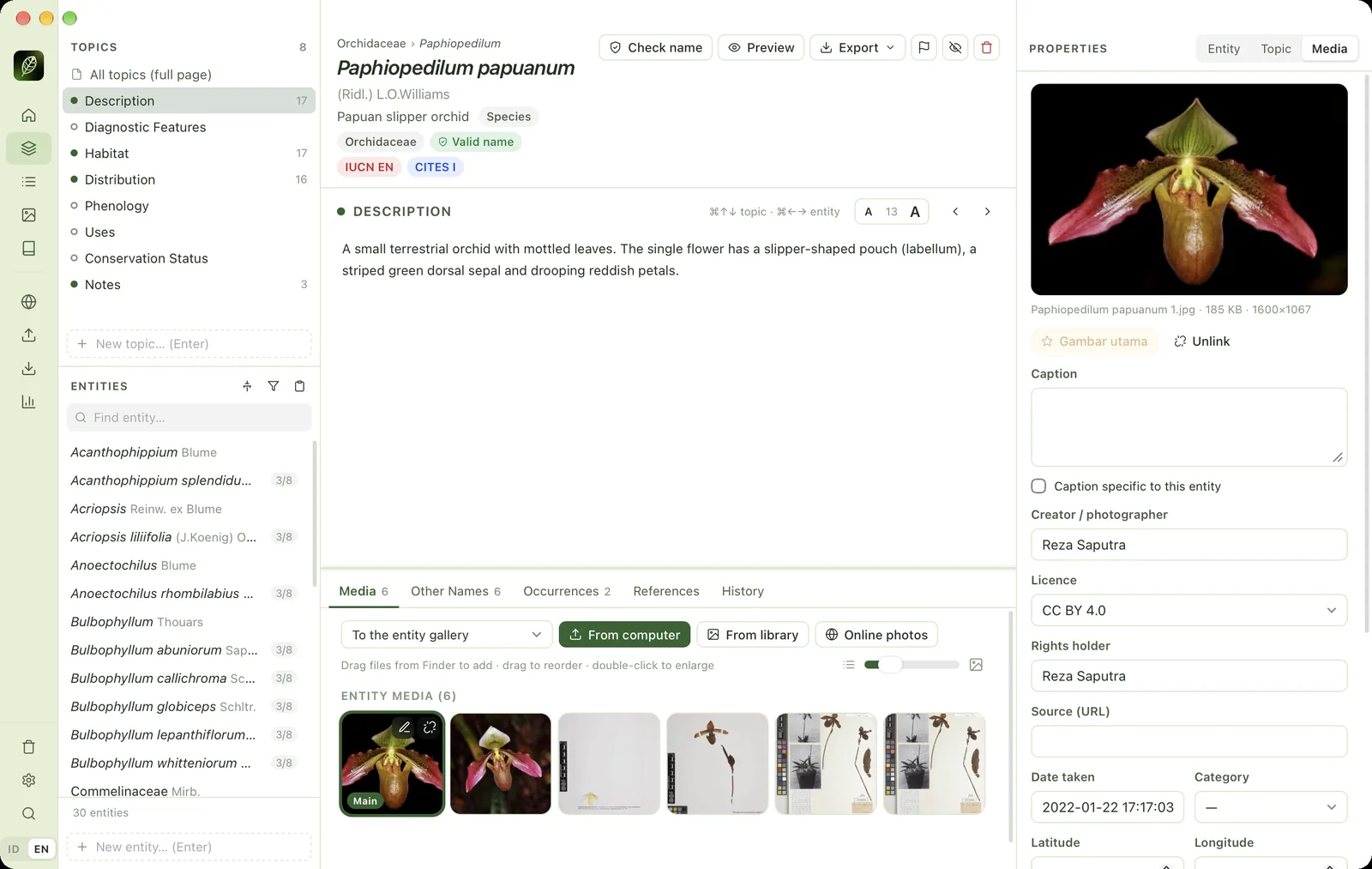
Select an entity, then open the Media tab in the bottom panel. Choose the destination in the Add to menu (the main gallery or a specific topic), then:
- From computer: choose files. You can also drag files from FinderFile Explorer onto this panel.
- From library: use media already in the project.
- Online photos: search for openly licensed photos on iNaturalist, GBIF and Wikimedia Commons. See Online photos & occurrences.
Identical files (same hash) are not copied twice. EXIF data such as date, GPS coordinates and photographer is read automatically.
Order & main image#
Drag pictures left or right to change the order, or focus a picture and press ⌥← / ⌥→. The first picture automatically becomes the main image and is labelled Main. The star icon moves a picture to first place. The main image is used in lists, on Home and on the cover of the information page.
Media properties#
Click a picture to open its properties in Properties → Media: caption, caption specific to this entity, creator/photographer, copyright holder, licence, source (URL), date taken, category, latitude/longitude, custom watermark and internal notes. Everything saves automatically.
Unlink or delete#
- Unlink (broken-chain icon): only detaches the media from this entity. The file stays in the library.
- Delete from library (Properties → Media, or the Media page): deletes the file from the project together with all its links. This cannot be undone.
The Media page#
The Media page (⌘4) shows every file in the project, grouped by category and by entity folder.
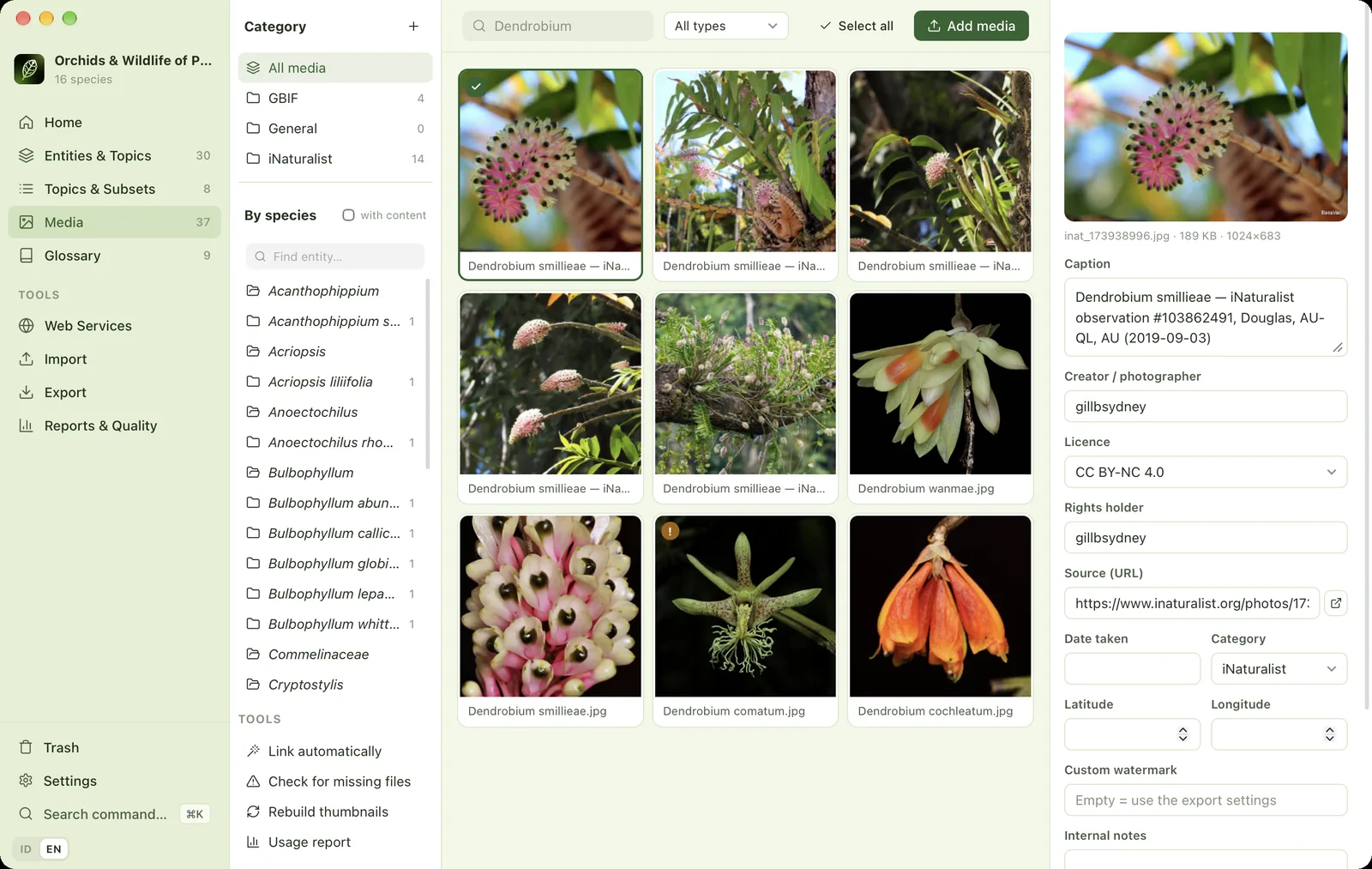
- 1CategoriesGroups of media. The + button creates a new category.
- 2Category listOnline photos go into the category of their source automatically (GBIF, iNaturalist).
- 3Per speciesEvery entity has its own media folder. Tick "with media" to show only folders that contain something.
- 4Find folderFilters the entity folders.
- 5Media toolsLink automatically, check for missing files, rebuild thumbnails, usage report.
- 6Search mediaSearches captions, file names or photographers.
- 7Media typeImages, video, sound or documents.
- 8Select allSelects every media item shown (⌘A) to edit them together.
- 9Add mediaCopies files from your computer into the project.
- 10Selection boxA tick = selected media. ⌘-click and ⇧-click to select many.
- 11Licence warningThe ! mark = media without a licence.
- 12PreviewThe selected picture with its file name, size and dimensions.
- 13Caption & creatorCaption, photographer and copyright holder, printed as attribution.
- 14LicenceThis photo is licensed CC BY-NC: it may not be used for commercial purposes.
Changing many media at once
Tick several media (or ⌘-click, ⇧-click, ⌘A). The right-hand panel turns into bulk properties: fields with different values show "Mixed". Fill in only the fields you want to change, then press Apply to N media. From the same panel you can link all selected media to one entity or delete them.
Tools
- Link automatically: links media to entities when the scientific name appears in the file name or caption. Example:
Dendrobium smillieae_Raja Ampat.jpg. - Check for missing files: finds media whose files are no longer in the project folder.
- Rebuild thumbnails.
- Usage report: see Media usage report.
Supported formats#
| Type | Formats |
|---|---|
| Images | JPG, PNG, GIF, WEBP, TIFF, BMP, HEIC/HEIF, AVIF, SVG |
| Video | MP4, M4V, MOV, WEBM, AVI, MPEG, 3GP, WMV, MKV, OGV |
| Sound | MP3, WAV, M4A, AAC, AIFF, FLAC, OGG, OPUS, WMA |
| Documents | PDF, Word, Excel, PowerPoint, ODT/ODS/ODP, RTF, TXT |
Video and documents get a thumbnail automatically. Sound recordings get a spectrogram (sonogram) labelled in kHz and seconds. Click the spectrogram to play from that point. For website exports, WAV, AIFF and FLAC recordings can be compressed to M4A (about 5–10× smaller). WMA cannot be played in browsers, so convert it to MP3, M4A or WAV first.