
Name checks & conservation status
Checking scientific names against POWO, GBIF, WoRMS and Catalogue of Life; IUCN, P.106/2018 and CITES status; online photos and occurrences.
Web services connect your project to international reference databases. They only run when you ask them to, and their responses are cached in the project so they do not need to be fetched again.
Checking scientific names#
One entity: click Check name in the entity header (⇧⌘K). Many entities: open Web Services (⌘6) → Check scientific names.
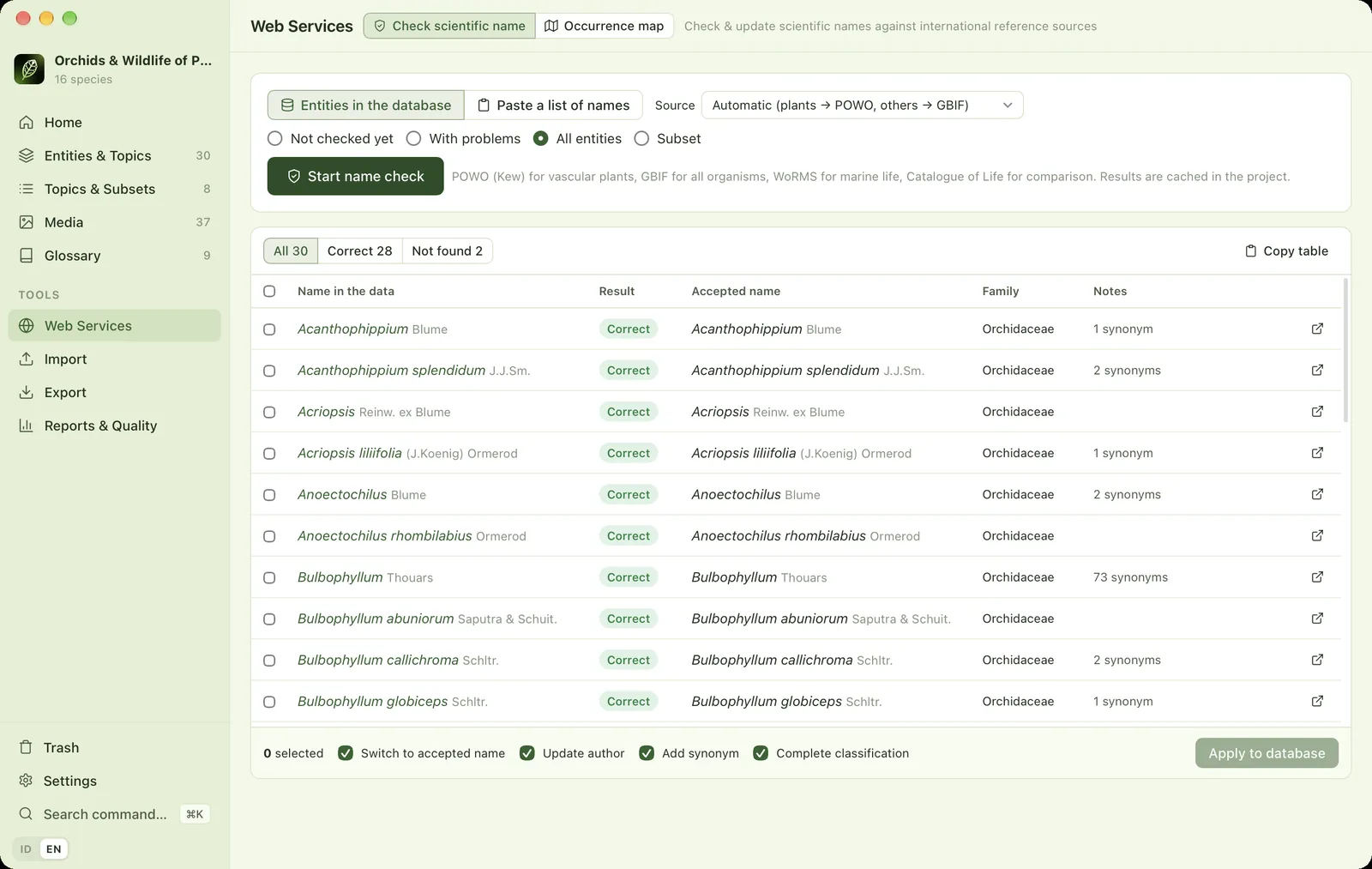
- 1Names to checkCheck the entities in the database, or paste a list of names from elsewhere.
- 2Reference sourceAutomatic (POWO for plants, GBIF for everything else), POWO, GBIF, WoRMS or Catalogue of Life.
- 3ScopeNot yet checked, problem names, all, or one subset.
- 4Start name checkFour requests run in parallel. Results are cached in the project.
- 5Filter resultsCorrect, needs updating, not found.
- 6Copy tableCopies the results for pasting into Excel.
- 7Select rowsOnly ticked rows are applied.
- 8ResultThe status of the name in the reference source.
- 9Accepted nameName and author according to the source.
- 10NotesWhat will change: author, synonyms, new name.
- 11Open at sourceOpens the name's page on the source website.
- 12Apply optionsSwitch to the accepted name, update the author, add synonyms, complete the classification.
- 13Apply to databaseApplies the changes for the selected rows.
Reference sources
| Source | Coverage |
|---|---|
| Automatic | POWO for plants, GBIF for other organisms. Can be changed in Settings → Web services. |
| POWO / WCVP (Kew) | Vascular plants. When POWO cannot be reached, the app automatically uses the World Checklist of Vascular Plants on ChecklistBank, POWO's own data source. |
| GBIF Backbone | All groups of organisms. |
| WoRMS | Marine life. |
| Catalogue of Life | A general comparison. |
Applying the results
Filter the results (correct, needs updating, not found), tick the rows you want to apply, choose the options, then click Apply to database. The old name is only kept as a synonym if it really differs, not just in formatting or author. Species names that only match at genus level in the source are treated as Not found and are not replaced.
The Paste a list of names tab checks names from outside the project, such as a field list. Names that are not in the project yet can be added straight away with Add the new ones to the database.
Conservation status#
Click Check status on the Conservation status card (Properties → Entity) or press ⇧⌘T. For many entities at once, select them and click Check conservation status in the bulk actions panel.
- IUCN Red List: the category is fetched through GBIF. Only the code (CR, EN, VU and so on) is stored, as IUCN's terms require. A category you entered by hand is never overwritten with "NE".
- P.106/2018: names are matched, including synonyms and the GBIF accepted name, against the list of protected plants and animals in Indonesian Ministerial Regulation P.106/MENLHK/SETJEN/KUM.1/12/2018. Names are shown with the regulation's spelling.
- CITES: Appendix I, II or III. Listings at genus or family level apply too (e.g. Orchidaceae spp.), and subspecies inherit the status of their parent species.
Status is shown as badges in the list, the entity header, the Properties panel and every export. It can also be used as a filter in the Entities panel. P.106 and CITES data are updated from the Pustaka Biodiversitas server. See Settings → Conservation status.
Completing the classification#
Complete from GBIF (Properties → Entity, or bulk actions) fills in empty kingdom-to-family fields from the GBIF Backbone, using just the genus name. Homonym genera, such as Ania which is both an orchid and a moth, are resolved through the full species name or the project's majority kingdom.
Online photos & occurrences#
For one entity: Media tab → Online photos, or Occurrences tab → Download from GBIF / iNaturalist. For many entities: bulk actions panel → Download online photos & occurrences.
- Photos: iNaturalist (research-grade observations only), GBIF and Wikimedia Commons.
- Occurrences: GBIF (georeferenced, without geospatial issues) and iNaturalist (research grade, coordinates not obscured).
- Licences: only CC0, CC BY and CC BY-SA are accepted by default. CC BY-NC is only included if you tick Include non-commercial licences. ND and "all rights reserved" are always rejected.
Each photo is stored with its photographer, licence and a link to its original page, and goes into the media category of its source. Downloads run one after another with pauses so the source servers are not overloaded.